
Netgear WiFi Router Troubleshooting and FAQ
Netgear a popular brand in a home wired and wireless networking products so everyone having a lot of questions about setting up Netgear router. The motive of making Netgear frequently ask questions is getting too much question about setup and troubleshooting for Netgear routers over various technical forums. This article will answer each question you want to know about Netgear 300Mbps and 11ac wireless router and modem that needs, while to configure router first time for the internet.
1: What is default login settings for Netgear Dual Band WiFi router?
Netgear router can access either using the login IP address or Login URL. You can also get default login settings details printed to router backside sticker and a quick user guide comes with the device. follow settings below for Netgear admin login for first-time configurations.
Default Login IP Address is 192.168.1.1 and Login URL- http://routerlogin.net
Default Login Username – admin
Default password – password or admin for some legacy models.
For Netgear nighthawk Router you can download Nighthawk apps (nighthawk-app.com.) for first-time setup Netgear Nighthawk router directly from mobile.
Login for Netgear Nighthawk Mesh Extender-
This Settings only work for NetGear nighthawk login for Mesh range Extenders.
Login URL- https://www.mywifiext.net/ for windows and Mac OS X or iOS:http://mywifiext.local
2: How to Login Netgear Wireless Router First Time?
Netgear genie login steps from a web browsers and mobile apps for setup and change passwords.
- Connect Netgear modem or Router either using Wi-Fi or wired connection to set up the first time. Default WiFi SSID name and password printed to the router sticker.
- Make your PC/Laptop network IP settings to DHCP mode or use 192.168.l.254 static IP address to make in Netgear default IP series.
- Open a web browser and access http://192.168.l.l or URL routerlogin .net and press enters key.
- Use “admin” for the default username and “password” for the default Netgear login password for the first time. If you already changed the default password use the same password to login to your netgearrouter.
How to secure WiFi in Home and Office
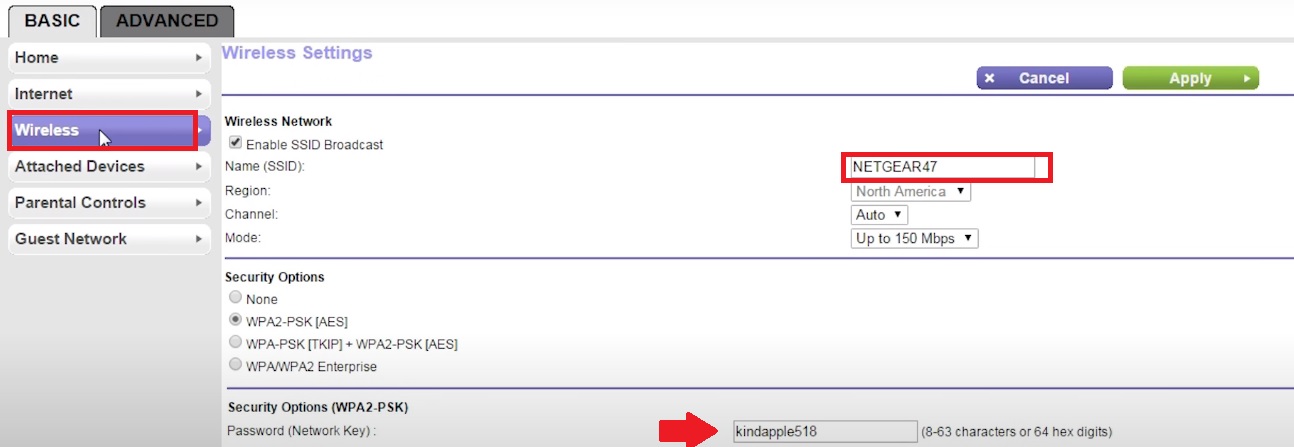
3: How to Change WiFi SSID and Password in Netgear?
Once you login to the router web interface as followed question no 2 now follow further steps to Change WiFi Name and password in Netgear.
Go to the wireless option from the left side menu.
Wireless Network
Name (SSID)- Netgear (change this name with new Wifi name as per your choice)
Go to the security option to change the WiFi password.
Security Option– WPA-WPA2-PSK
Password (Network Key)- WiFI password (create new wifi password)
Press apply settings button to change configurations.
4: How to change the default LAN IP address in Netgear Router?
Login router with default login IP (192.168.1.1.) and username (admin) and password (password).
Go to Advanced – Setup- LAN setup
LAN IP Address– 192.168.1..1 (change this IP address to new IP address)
Subnet mask– 255.255.255.0
After change, the IP address press Apply settings button and router will web interface will disconnect as login IP address updated so open router settings with new changed LAN IP address.
5: How to Upgrade Netgear WiFi router Latest Firmware?
There is two ways to upgrade Netgear router firmware. One is firmware updates manually and online without downloading firmware offline files. Upgrading router firmware will keep your router problem-free and improve network stability and performance.
Netgear Firmware Update Online
Netgear modem and routers firmware can update from mobile apps as well as from web browser login.
- Open router to the web browsers.
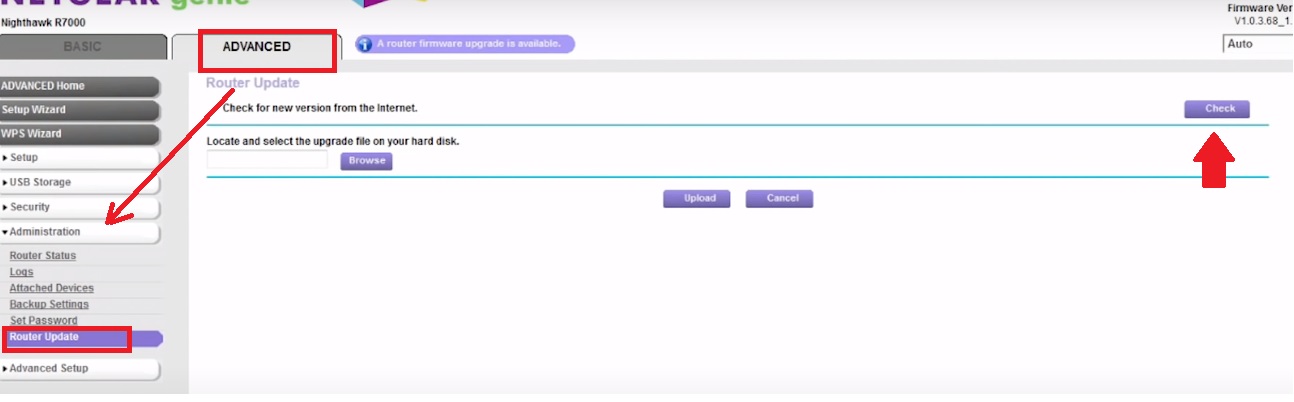
- Go to Advanced- Administration or Settings- Administration
- Select Router upgrade
- Press the Check button to search the latest firmware version for your Netgear model.
- After a few seconds, you will get a firmware update. Press the Yes button to update the firmware and No button to cancel the update.
Update firmware Manually
Updating Netgear firmware manually need to download the firmware file from Netgear support as compatible to router models. Follow steps below
- Connect your PC/Laptop to the router LAN port.
- Open a Web browser and visit Netgear Support (https://www.netgear.com/support/)
- Search router model or product name. (get model number printed to router label.
- Select the latest firmware and download it to drive.
- Login wireless router and go to Advanced- Administration
- Select Router upgrade or Firmware update option from the submenu.
- Browser firmware file downloaded to drive and press the update button.
- Wait for 4-5 minutes until router upgrading firmware and reboot itself.
- Login web interface again and check firmware version should change.
6: How to access the Netgear Router login web interface If forget login password?
Forgetting a login password after changed the first time is a common problem. While setup router first time always download a configuration backup file for the future. If you forget login IP address then there are many ways to get a router LAN IP address but if you forget login username or password then the only way is to recover password using a security question or factory reset router.
Netgear WiFi router Password recovery steps.
- Open router Login URL routerlogin.net. or 192.168.1.1 to the browser.
- Login Username and password window appear.
- Click the CANCEL button to open the Recovery window.
- The Router Password Recovery window will open.
- Enter your router’s serial number. (find router serial number printed router label or box)
- Press the CONTINUE button.
- Answer the security questions you have configured during the first time setup.
If you cannot answer your security questions or you did not setup a recovery option then make a factory reset router.
Note– Factory reset will erase all configuration saved to router so only use reset option If you have configuration backup or you have all internet settings to setup router again.
7: How to Factory reset Netgear Modem and router?
Factory reset Netgear Nighthawk Router and other models can be used software reset and Hard reset.i always use the reset option to fix mynetgear wifi problems after a certain time of running.
Software Reset Netgear
You can reset the router from web interface if you have router login details such as IP address username and password. If your router giving any stability or wifi connectivity issue you can use soft reset to fix wifi issue in Net gear router?
- Login Router web interface from the web browser.
- Go to Maintenance- Backup settings. (Model- WPN824V2 and for other models)
- Press the Restore button to the factory default router.
- Use default login credentials to login router again.
Hard Reset Netgear Nighhawk Net genie and other routers
- Locate a small reset button beside Ethernet ports.
- Press the reset button for 10-15 seconds and release it when power led blinking.
- This process may take 3-5 minutes so wait until resetting process over.
- Login router again with default Netgear router login settings printed to the router manual and label.
8: Setup a Mac access list in Netgear Router.
Related Post
- TP-Link archer C50 Vs Tenda AC6 AC1200
- Block Internet Access but keep Local Network access in MikroTik
- How to Login Ooma Telo VoiP Phone
- How to Login Arris T25 WiFi Cable Modem